Utilizy
Checking a new keyboard and screen in the browser: Keyboard Tester and Dead Pixel Test
How to prove a key that only sometimes works and find dead pixels on a new screen, with two Utilizy tools that need no install: Keyboard Tester and Dead Pixel Test.
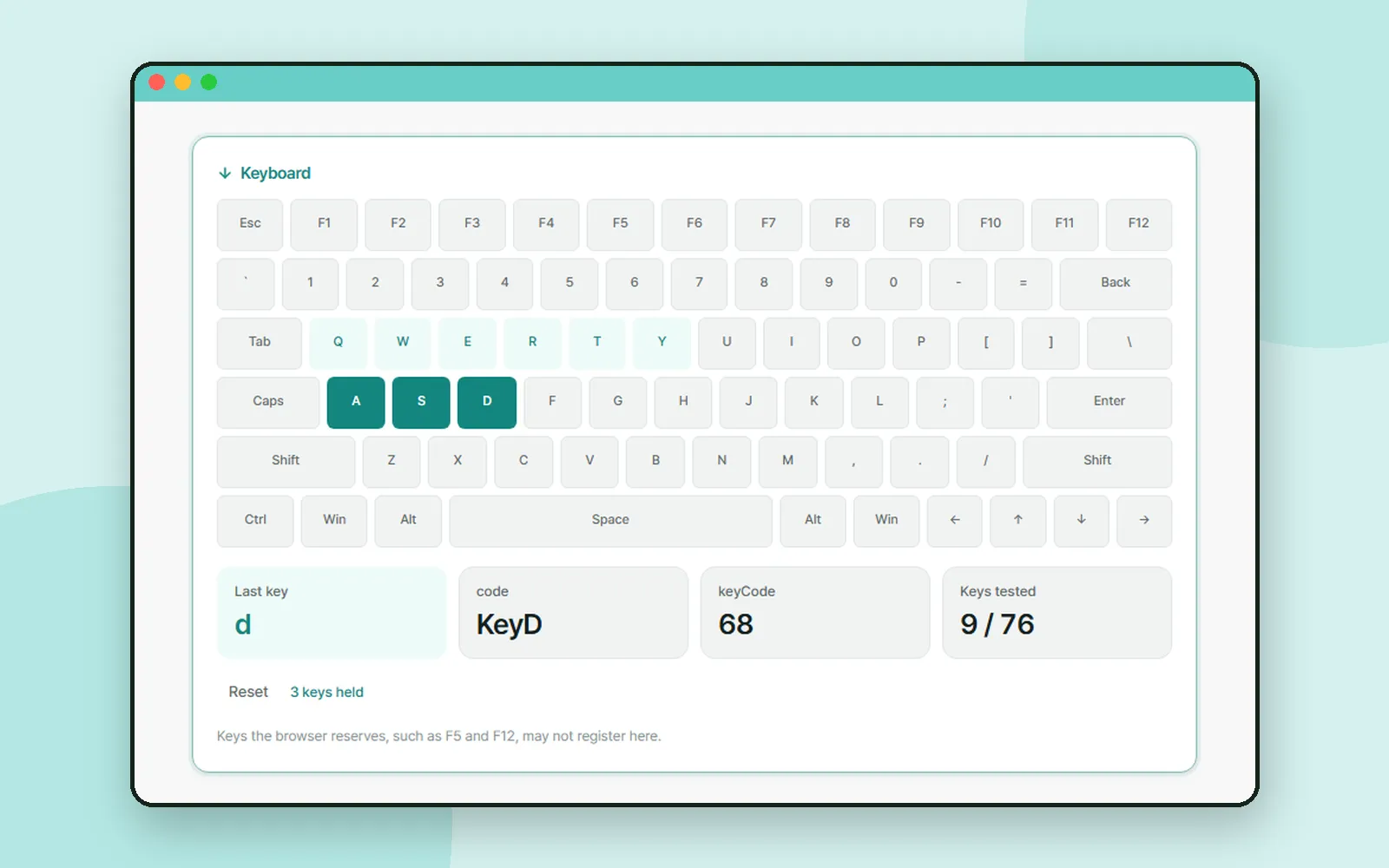
A key that works nine times out of ten is hard to prove, and a single bright dot on a new screen is easy to talk yourself out of. Utilizy has two check tools that need no install: Keyboard Tester and Dead Pixel Test.
ZZXXCCVV siteUtilizy · Keyboard TesterFree web tools that run right in your browserOpen1. Keyboard Tester: see which keys register
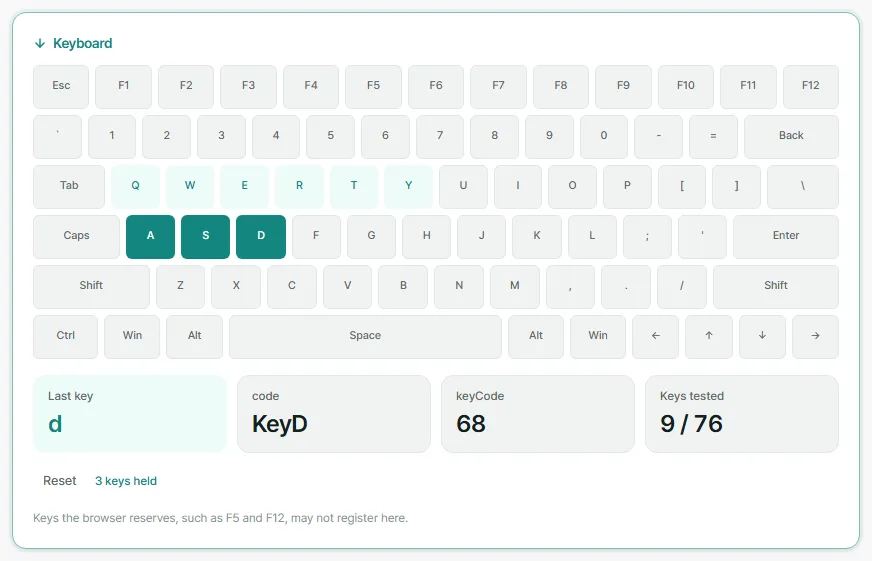
Open "Keyboard Tester" and start pressing. Keys are shown in two states:
| Shade | Meaning |
|---|---|
| Solid | The key you are holding right now |
| Light | A key you have pressed at least once |
The light shade is what makes this useful: it shows which keys you have not tried yet. Below the board you get the last key you pressed, its code, the legacy keyCode, and how many keys you have tested. The on-screen board is drawn as a US layout, but it matches keys by physical position, so your own layout does not matter.
How many keys register at once
Hold two or more keys down at the same time and the panel shows how many keys are being held. It is the quickest way to check the problem where moving and jumping at once stops working in a game. The site notes that membrane keyboards usually manage two or three, while gaming keyboards advertise six or more, or n-key rollover.
2. Dead Pixel Test: full-screen colours
ZZXXCCVV siteUtilizy · Dead Pixel TestFree web tools that run right in your browserOpen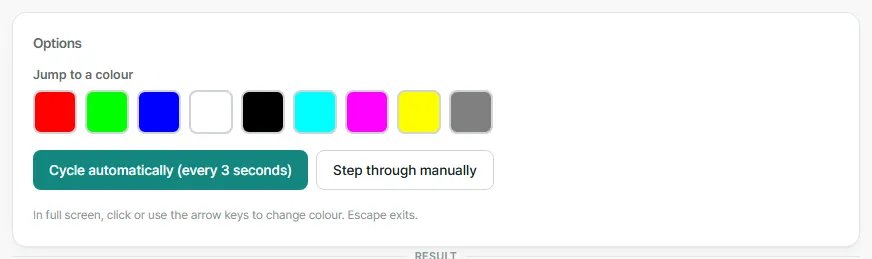
"Dead Pixel Test" fills the screen with one flat colour at a time so a faulty point stands out. It uses nine: red, green, blue, white, black, cyan, magenta, yellow and gray.


The "How to check" panel spells out three steps: clean the screen with a soft cloth so dust is not mistaken for a fault, scan the whole display slowly on each colour, and note the position of any point that stays a different colour or stays lit.
Phone and tablet screens work the same way. Open the page in the browser and step through the colours.
3. What both tools have in common
Neither needs an install or an account: open the page and use it. Both are worth a few minutes while a keyboard or a screen is still inside its return window, because a fault you cannot demonstrate later is a fault you end up living with.
Coming up
Next time we open the long reads on Aha!So and follow the history of one ordinary thing from the start.
Frequently asked questions
Some keys do nothing when I press them. Is the keyboard broken?
Not necessarily. The site points out that the browser and the operating system claim a few keys first, such as F5 and F12. Compare them with other keys before deciding.
How many keys can I press at once?
According to the site, cheap membrane keyboards manage two or three before extra presses are dropped, while gaming keyboards advertise six or more, or n-key rollover. Hold several keys in the Keyboard Tester to see your own limit.
How many dead pixels are normal?
The site says manufacturers usually replace a screen only above their own threshold, often three to five faulty pixels, which is why testing inside the return window matters.
How do I tell dust from a dead pixel?
Wipe the screen with a soft cloth. Dust sits on the surface and moves; a dead pixel is inside the panel and stays where it is.