Utilizy
How to use Utilizy: free web tools that work in your browser, from word counts to smaller photos
Free web tools with no install or sign-up. How to find a tool on Utilizy, what "Runs in your browser" means, and how to count words, shrink photos and merge PDFs.
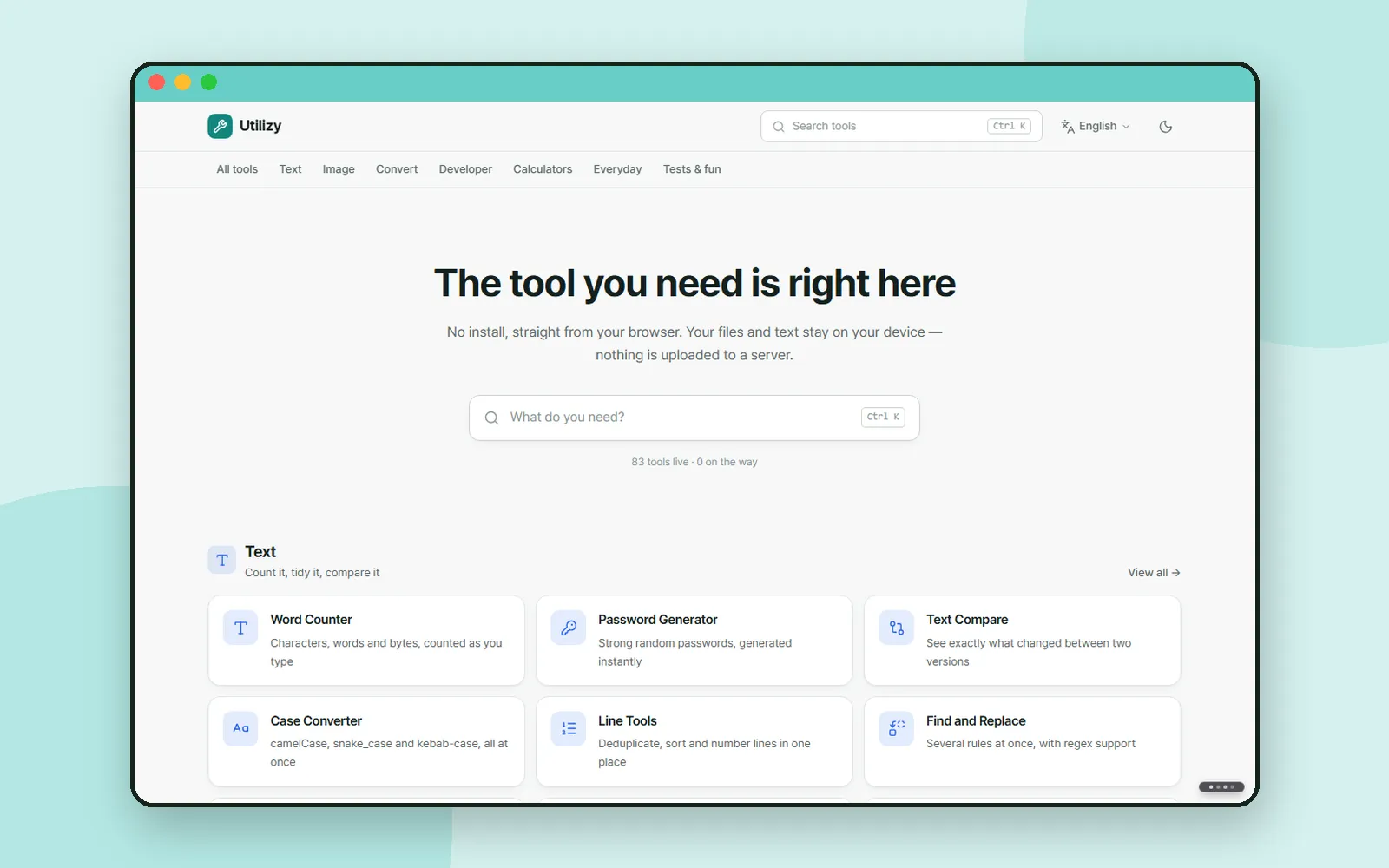
In Korean Out Loud we looked at a site for learning. This time it is a site for getting small jobs done.
Installing a program or creating an account just to shrink one photo or join two PDFs is a hassle. Utilizy is a collection of more than 80 free web tools you use right in your browser, with no install and no sign-up. They are grouped into seven categories: Text, Image, Convert, Developer, Calculators, Everyday, and Tests & fun. This post covers the tools people reach for most often.
ZZXXCCVV siteUtilizyFree web tools that run right in your browserOpenFinding a tool
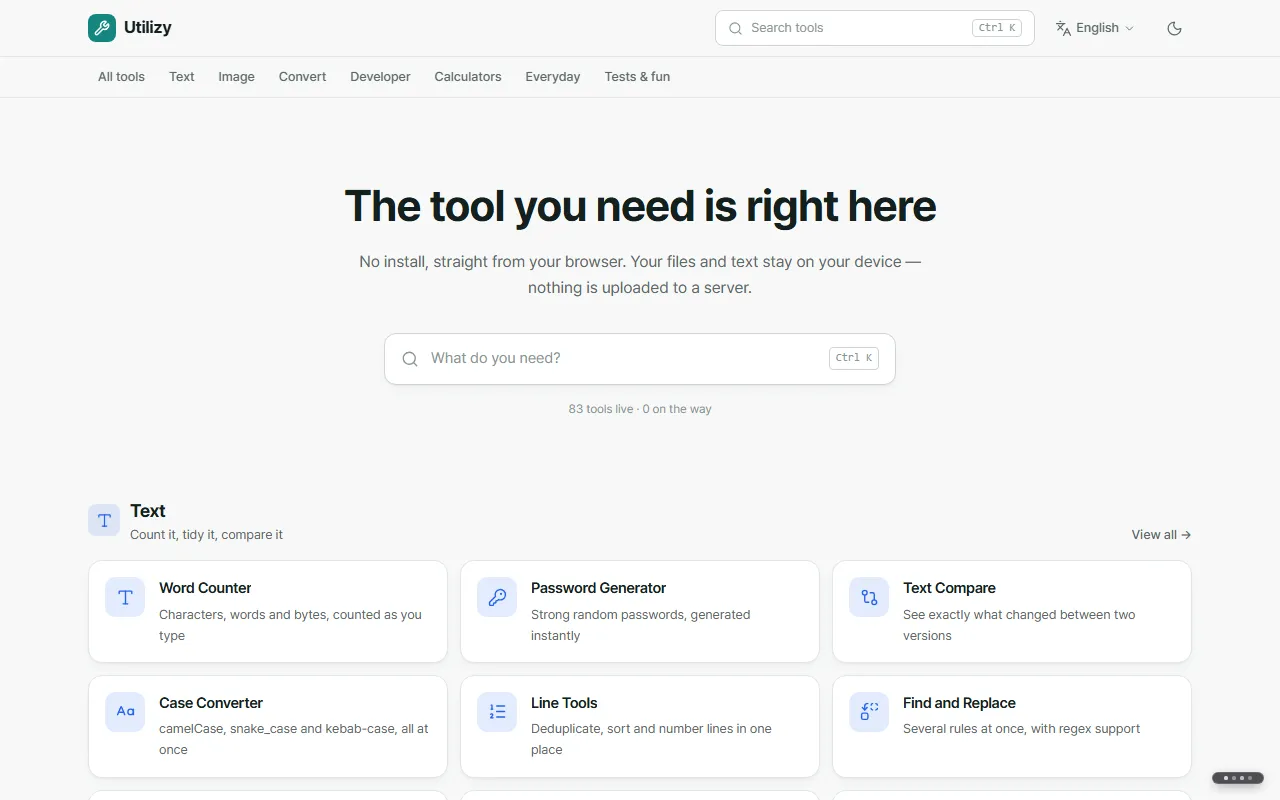
Type what you want to do, such as "word", "PDF" or "background", into the search box on the front page ("What do you need?"), and matching tools appear. You can also open the search with Ctrl+K. To browse, scroll down to the category lists.
What "Runs in your browser" means
When a tool page shows "Runs in your browser", the text or files you enter are processed on your own device and never sent to a server. Every tool in this post carries that label.
Two things are worth knowing:
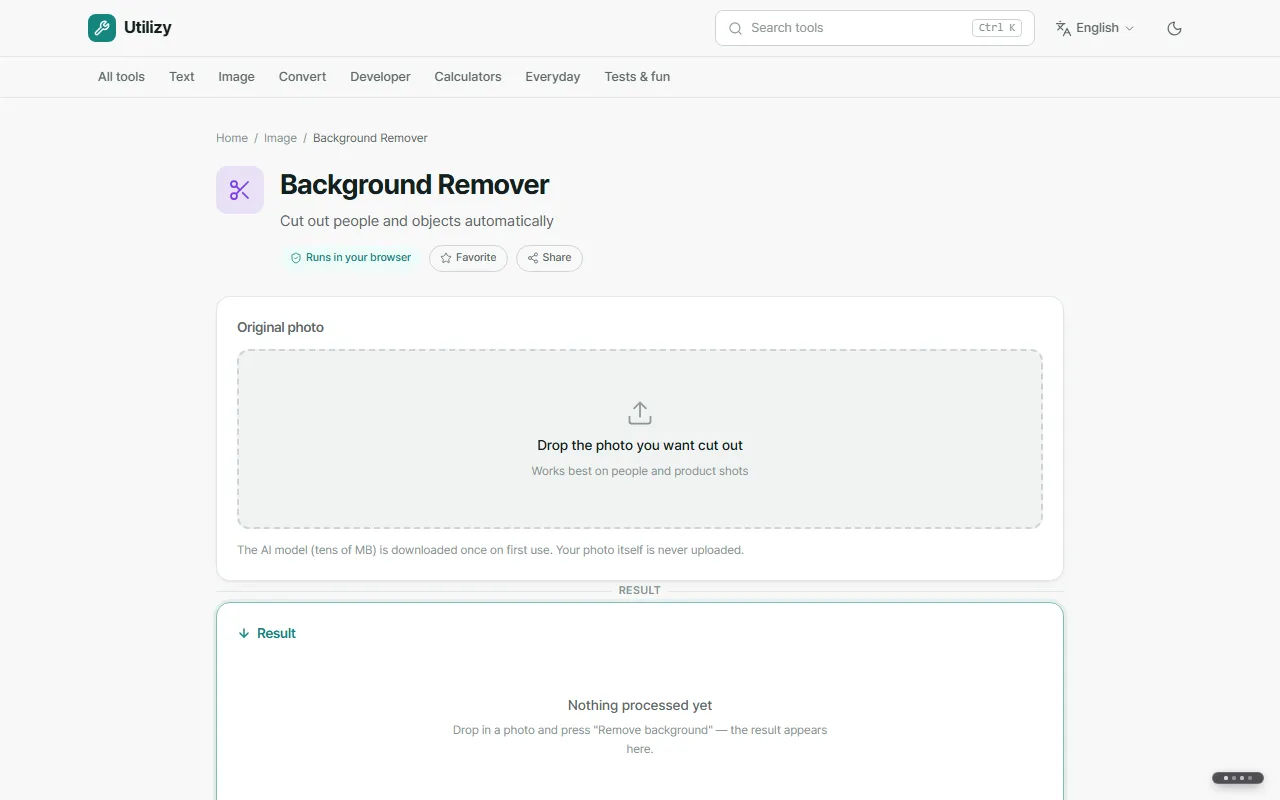
- Background remover and image to text: the first time you use them, they download an AI model or a text recognition engine, so the first run can take a while. Your photo itself is not uploaded; it is processed on your device.
- Tools that need outside data, such as currency rates or IP lookups: according to the privacy policy, your input is passed to that outside service.
Counting words and characters
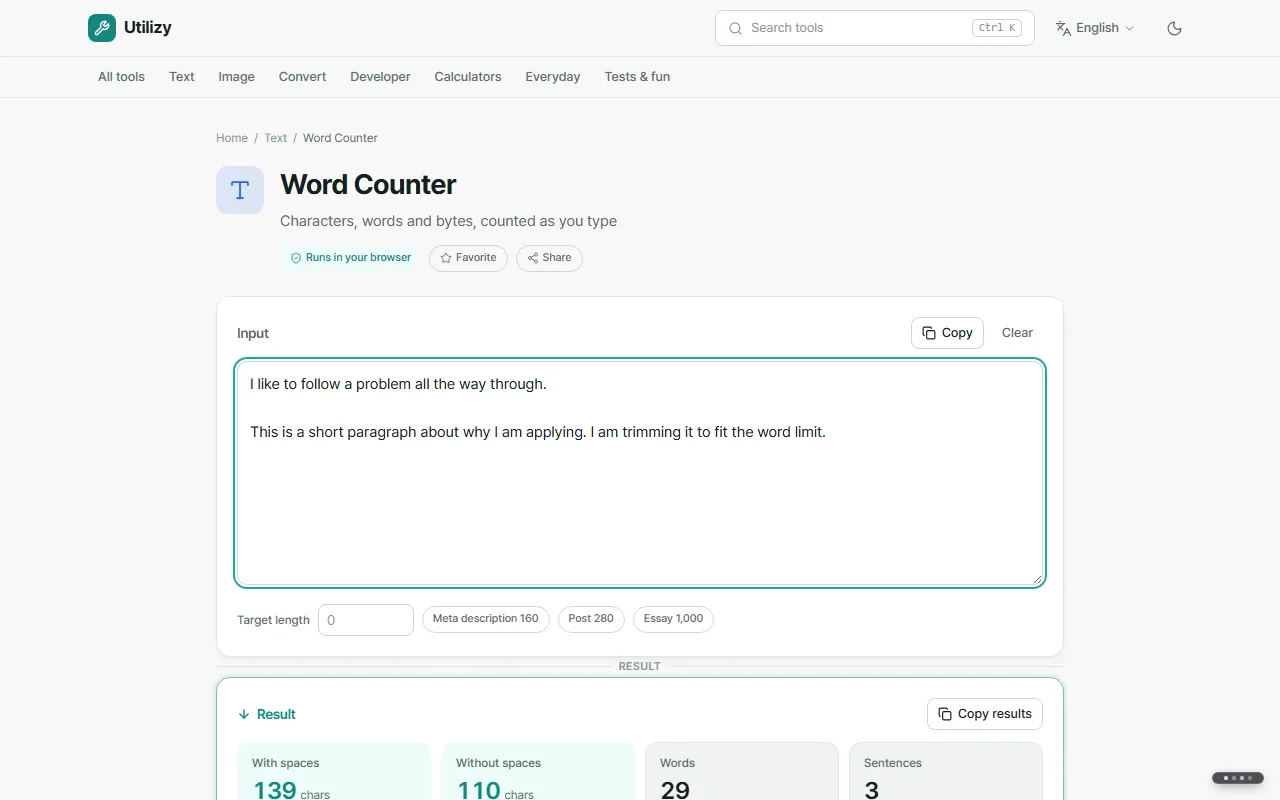
Paste your text into the "Word Counter" and the results appear straight away.
| Count | When it helps |
|---|---|
| With spaces · Without spaces | Fitting a form or an essay with a character limit |
| Words · Sentences · Paragraphs · Lines | Checking the length and shape of your writing |
| Target length | Setting a limit and seeing how much room is left |
Resizing photos, making them smaller, and removing backgrounds
| Tool | Use it to |
|---|---|
| Image Resizer | Change a photo's width and height |
| Image Compressor | Make a file smaller to fit an upload limit |
| Background Remover | Remove the background from a photo. It works best on photos of people and products |
| Image to Text (OCR) | Turn the text in a photo into editable text. It can take more than 30 seconds |
Merging and splitting PDFs
Use the PDF Merger to combine several PDFs into one, and the PDF Splitter to split a file or pull out the pages you need. Both process your files on your device.
Other handy tools
| Tool | What it does |
|---|---|
| QR Code Generator | Turn a link or text into a QR code |
| Password Generator | Create a password with your browser's random number generator |
| Unit Converter | Convert units such as length and weight |
| Keyboard Tester | Check whether any keys are not responding |
Coming up
Next time: Trenvid, where you can see trending YouTube videos country by country.
Frequently asked questions
Is Utilizy free? Do I need an account?
It is free, with no sign-up and nothing to install. Open a tool page in your browser and use it right away.
Are my files or text uploaded?
Tools marked "Runs in your browser" never send what you enter to a server. The background remover and the image-to-text tool download an AI model or a text recognition engine the first time you use them, but your photo is processed on your device. According to the privacy policy, tools that need outside data, such as currency rates or IP lookups, pass your input to that service.
Can I keep my favorite tools in one place?
Yes. Press Favorite on a tool page and it appears under Favorites / Recently used on the front page. The list is stored only in the browser you are using.