Utilizy
Shrink a photo and cut out its background, without uploading it: two Utilizy image tools
Shrink a phone photo for email or the web and cut a product out of its background with Utilizy's Image Compressor and Background Remover, right in your browser.
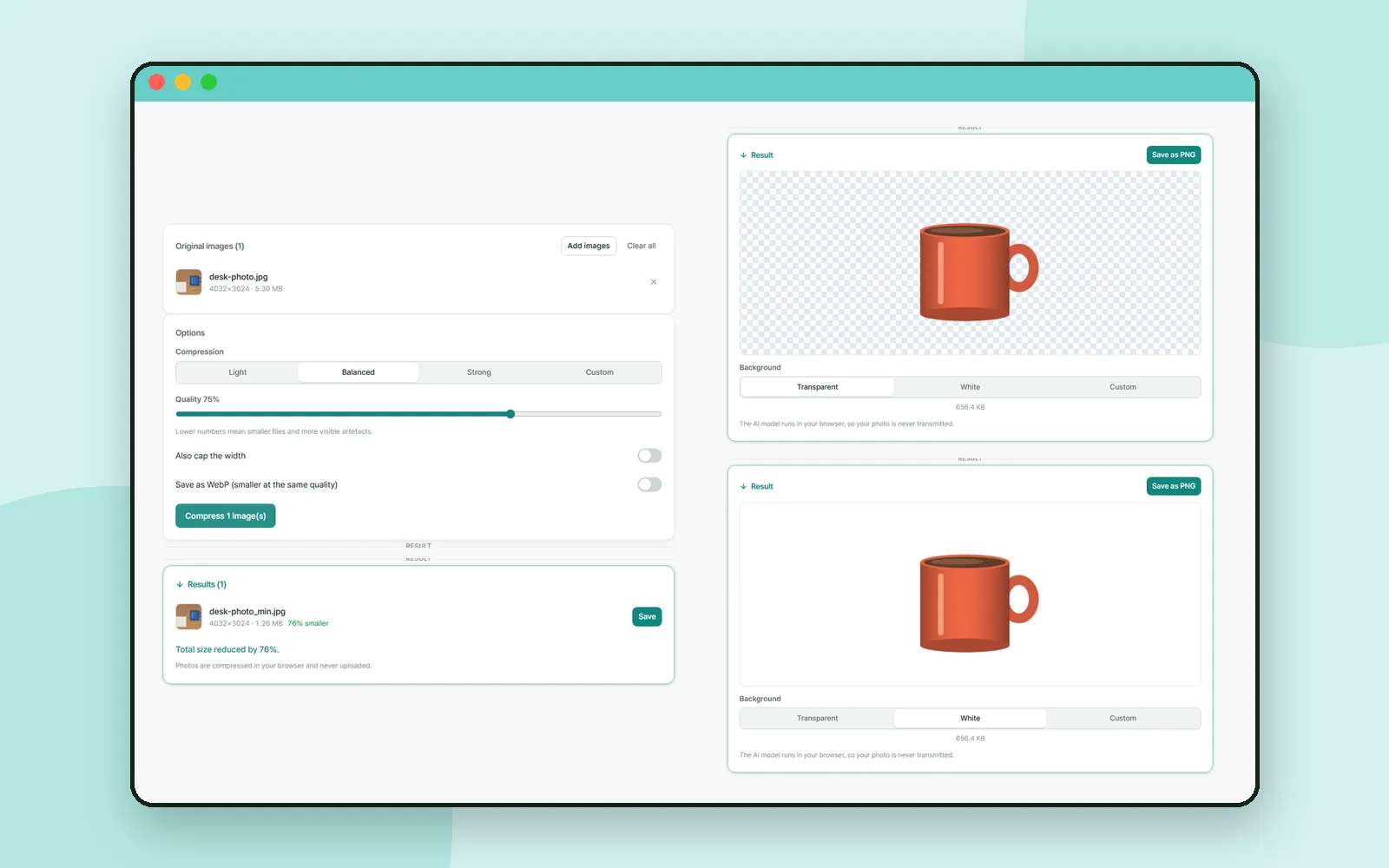
A photo straight off a phone is often several megabytes, too big for some email attachments and heavier than a web page needs. And a product photo taken on a cluttered desk looks better on a plain background. Utilizy has a tool for each job, and both work inside your browser without uploading the photo. In the Keyboard Tester and Dead Pixel Test post we checked new hardware; this time it is photos.
ZZXXCCVV siteUtilizy · Image CompressorFree web tools that run right in your browserOpen1. Image Compressor: pick a strength
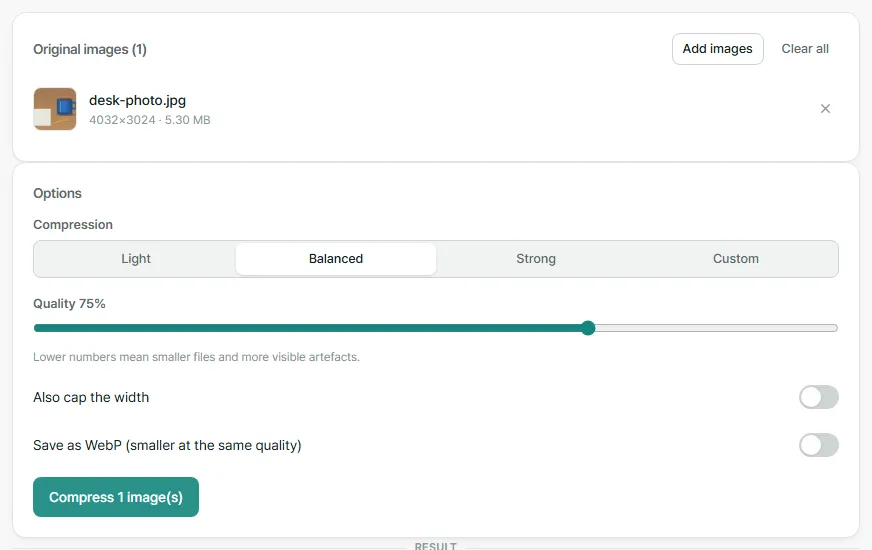
| Option | When to use it |
|---|---|
| Light / Balanced / Strong | Lower quality means a smaller file and more visible artefacts |
| Custom | Set the quality yourself with the slider |
| Also cap the width | A large phone photo that will be shown small |
| Save as WebP | Web pages. The site says WebP is roughly 25–35% smaller than JPG at the same quality |
2. Read the result before you save
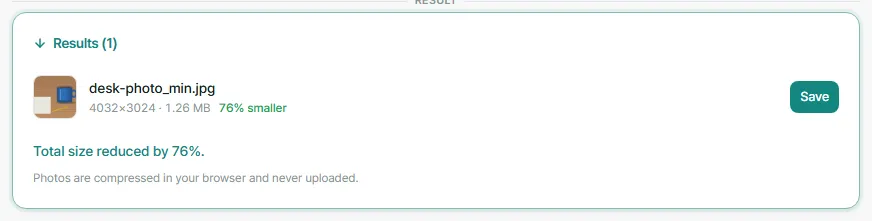
Each file gets its own line in Results, with the new size and how much smaller it is. The sample above is a 5.3 MB image we drew for this post; with Balanced, it came out at 1.26 MB, 76% smaller, at the same 4032×3024 size. Real photos will vary with their content.
ZZXXCCVV siteUtilizy · Background RemoverFree web tools that run right in your browserOpen3. Background Remover: cut out the subject
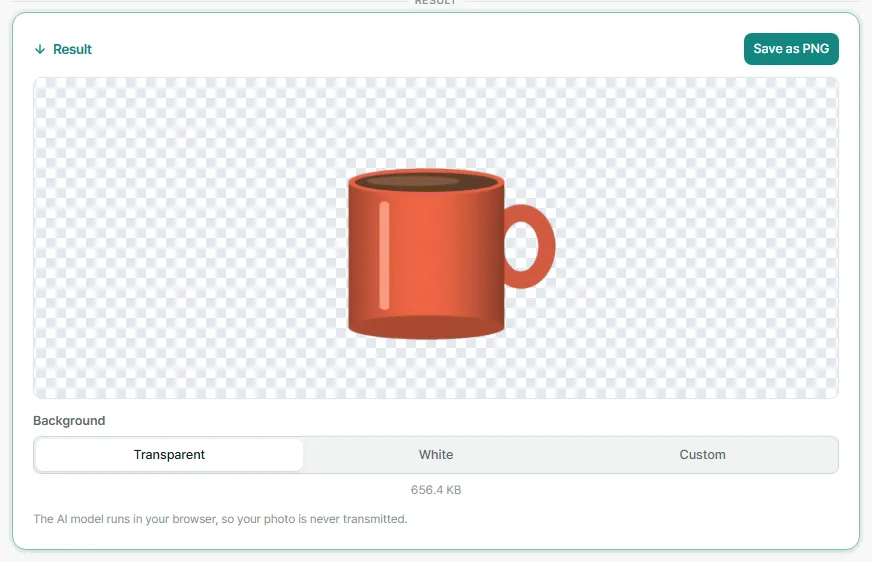
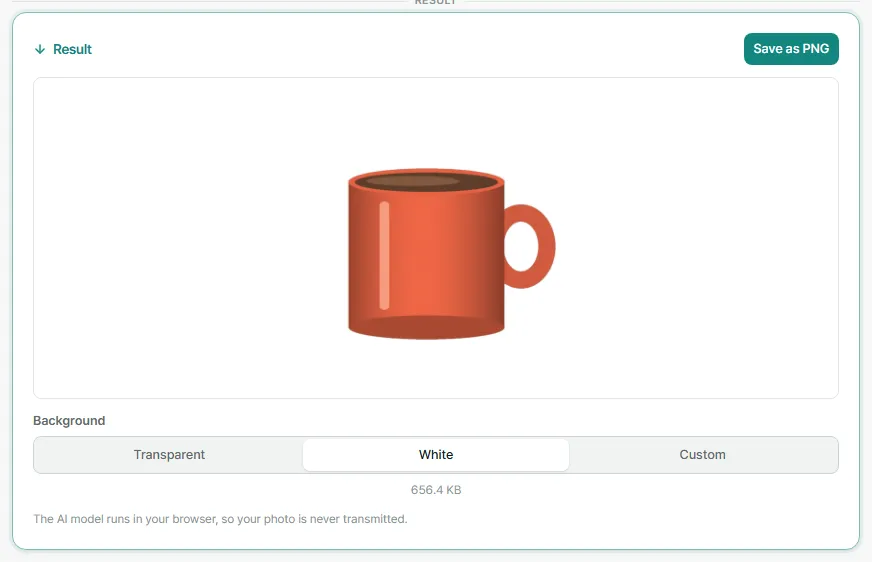
A white background suits marketplace listings and documents; transparent is for placing the cutout on a slide or another image. Our sample mug came out cleanly, including the hole in the handle, because the mug stands out clearly from the striped background.
4. Using the two together
The cutout is saved as PNG because JPG has no transparency. That also means the order matters:
- Keep the PNG if you need the transparent background. The Image Compressor saves PNG files as JPG, so the transparent area would be lost.
- Choose White in the Background Remover first if a plain background is fine. Then compressing the saved image is not a problem.
- Use the Image Converter if you need a different format for the same picture.
5. Your photo stays on your device
Both tools say the photo never leaves your browser, and we checked it while writing this post. The Background Remover downloaded its model files the first time we used it; after that, neither tool sent the sample photos to any server. The pages still load the usual analytics and ads, but the photo itself was not part of any request.
That is useful for photos you would rather not upload, such as a document scan or a picture of your home.
Coming up
In the next posts, we will keep introducing the ZZXXCCVV sites and how to use them.
Frequently asked questions
Are my photos uploaded to a server?
No. Both tools say the photo is processed in your browser. While testing, we watched the network requests: the Background Remover downloaded its AI model files, but neither tool sent the photo anywhere.
Why is the first background removal slow?
On first use the tool downloads an AI model of tens of megabytes. The site says it is cached after that, so later photos take only a few seconds.
Why does my compressed PNG come out as a JPG?
The Image Compressor saves PNG files as JPG to make them smaller, and JPG has no transparency. If you need to keep a transparent background, do not run the cutout through the compressor.
What kinds of photos does the Background Remover handle best?
The site says it works best on people and product shots with a clear subject. Hair, fur, motion blur and see-through things like glass are where automatic cutouts still struggle.