Ppooing
Games you can finish in five minutes: how to pick one on Ppooing
Only have five minutes? How to find a quick free browser game on Ppooing: the Just Five Minutes course, signs of a short game, phone play and favorites.
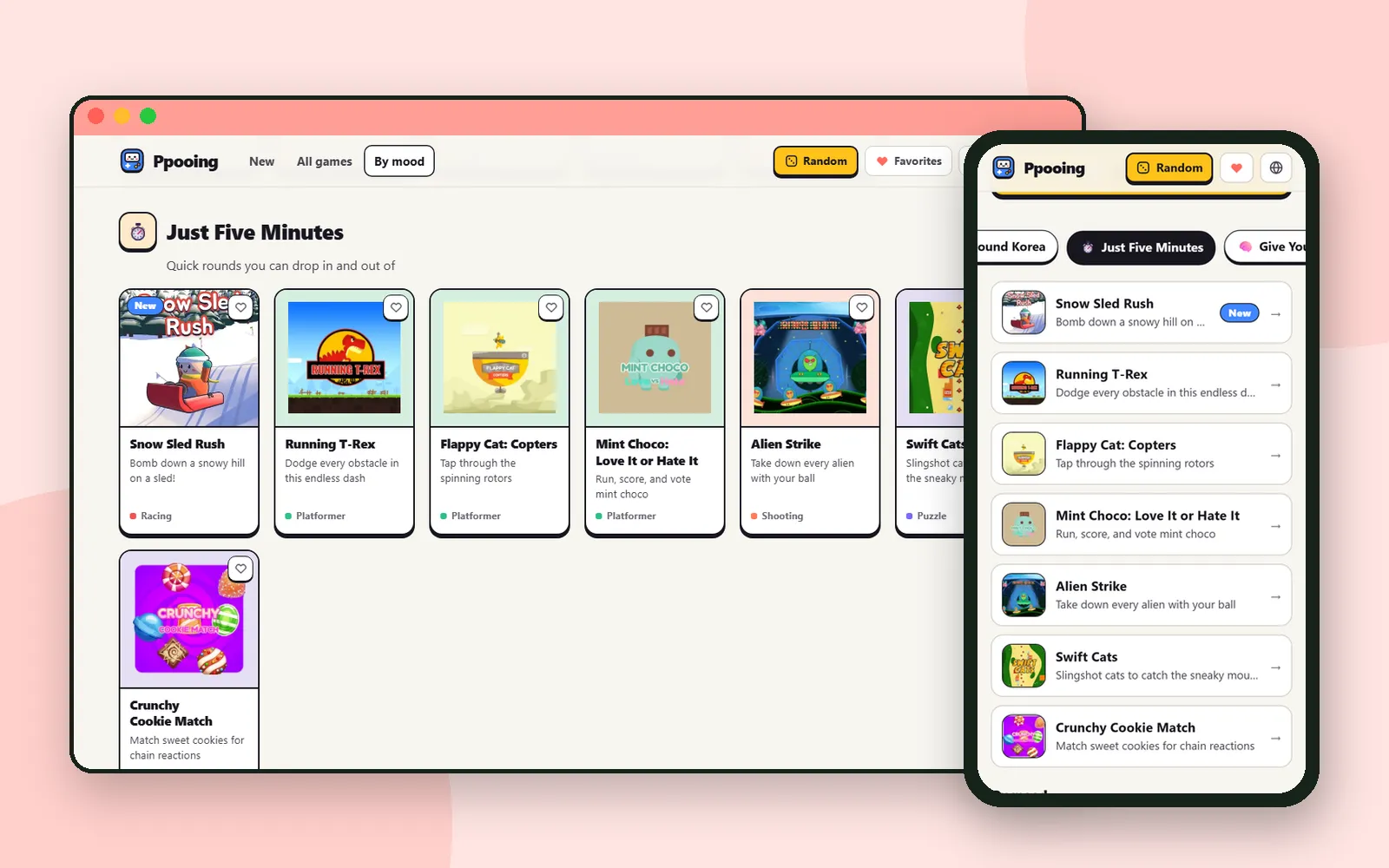
Five minutes is enough for a round or two, as long as the game needs no tutorial, no long story and no save file. Ppooing is a collection of free casual games you play in your browser with no install and no sign-up, and it gathers a few games for exactly that moment. This post shows where to find them, what to look for in a short game, and how to keep the ones you like within reach. For a full tour of the site, see How to use Ppooing.
ZZXXCCVV sitePpooingFree casual games — nothing to installOpen1. Open the Just Five Minutes course
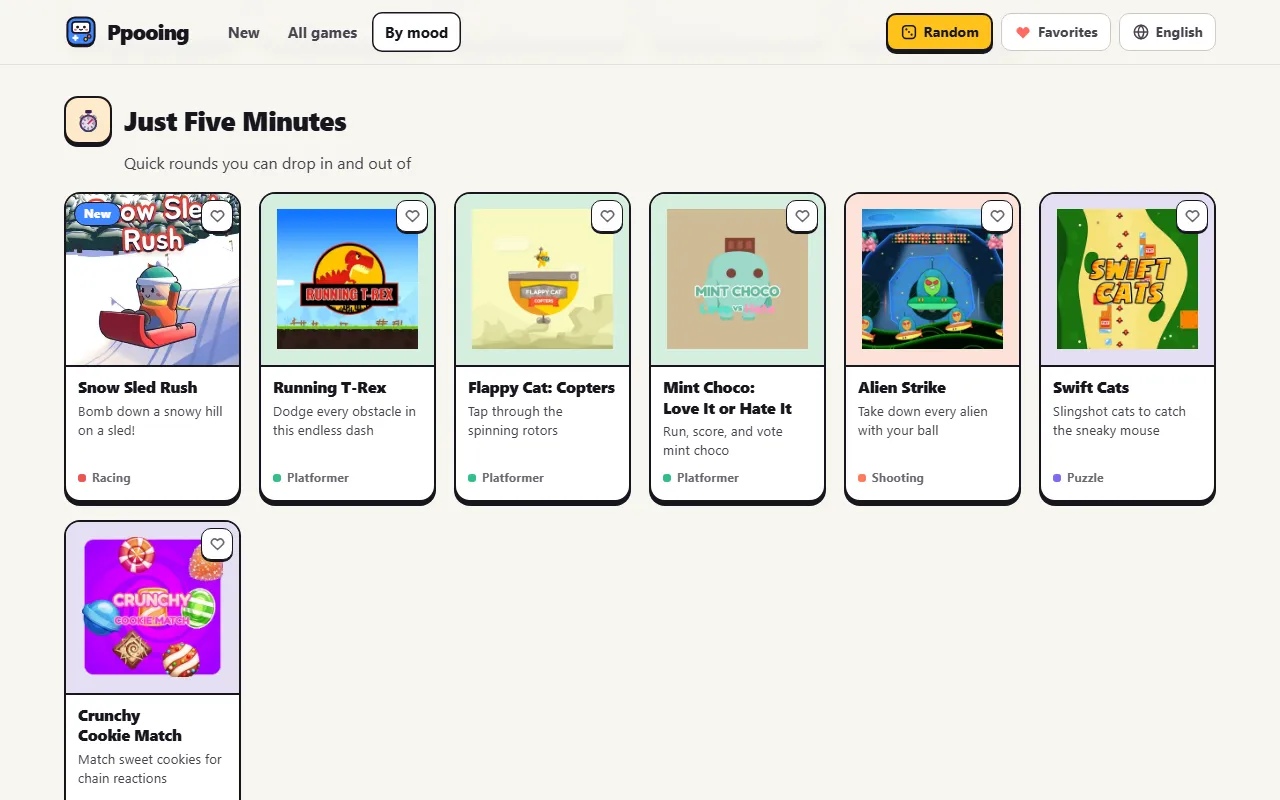
Ppooing sorts some of its games into courses by the time you have and the mood you are in. The one for short breaks is Just Five Minutes, which the site describes as "Quick rounds you can drop in and out of".
The same chips also sit under "What should I play?" on the front page. Press "Just Five Minutes" there and the list of games opens in place.
2. What makes a game quick
The course is a starting point, not a timer: how long a round lasts depends on how well you play. When you look for a short game on your own, these signs help.
| Sign | Why it keeps things short | Example in the course |
|---|---|---|
| The run ends when you hit something | There is nothing to save; you start again in a second | Running T-Rex, Mint Choco: Love It or Hate It |
| One race down one slope | Each round has a finish line | Snow Sled Rush |
| Controls fit in one line | Tap to jump, hold left or right to steer, so there is nothing to learn first | Mint Choco: Love It or Hate It, Snow Sled Rush |
| One shot at a time | Each move is a small, separate decision | Swift Cats |
Courses such as "Think Like a Commander", described as "Defend, deploy and out-plan the horde", lean towards planning and building. Keep those for when you have longer.
3. Read the game page before you press Play
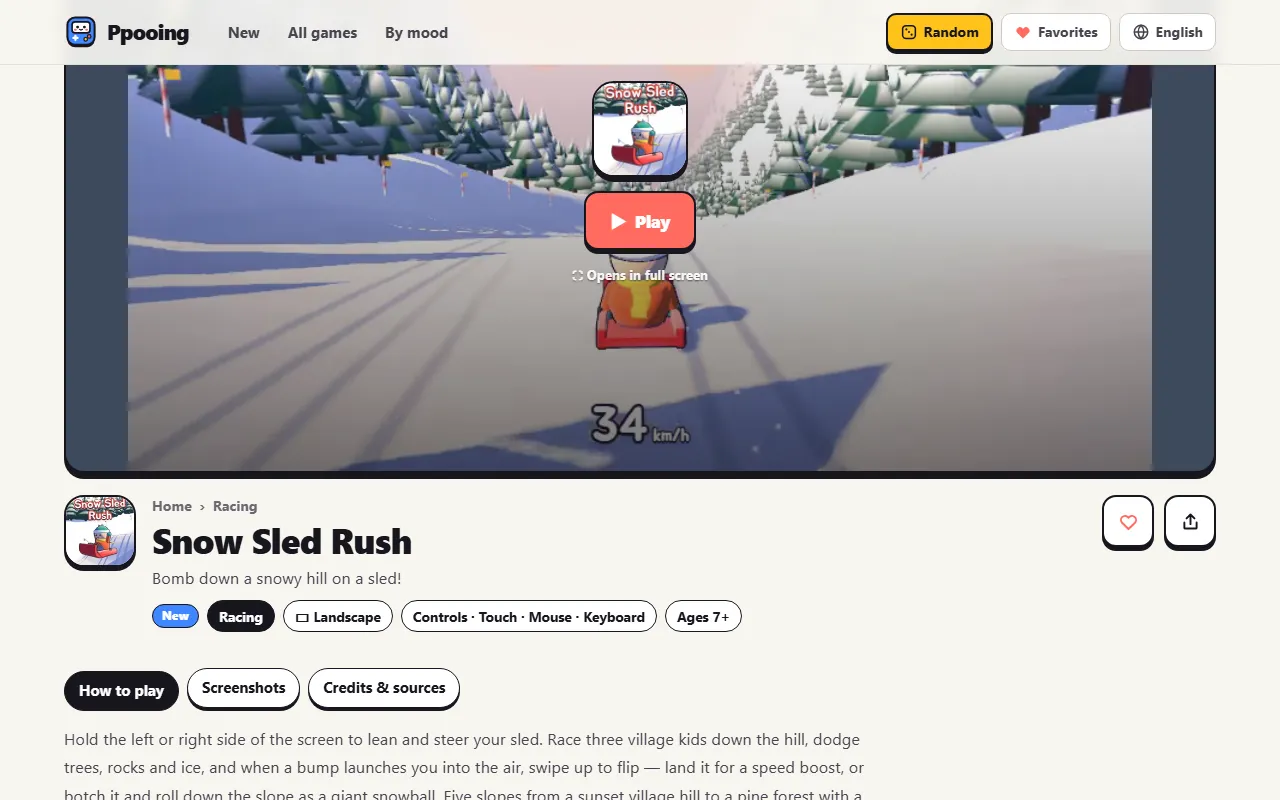
A game page tells you most of what you need in a few seconds.
- Tags under the title show the genre and whether the game is played in Landscape or Portrait. Some games also list their controls, such as "Controls · Touch · Mouse · Keyboard", and an age.
- "How to play" explains the game in a few lines. Running T-Rex needs only two sentences: the T-Rex keeps running, and you get it past the obstacles. Snow Sled Rush has you hold the left or right side of the screen to steer and race three village kids down the hill, with five slopes and a new slope every day.
The game does not load until you press "▶ Play". Once it is running, the bar under the game has "↻ Restart", "⛶ Fullscreen" and "✕ Exit". When your five minutes are up, press Exit: the site asks you to confirm and says your progress will not be saved.
4. Playing on a phone
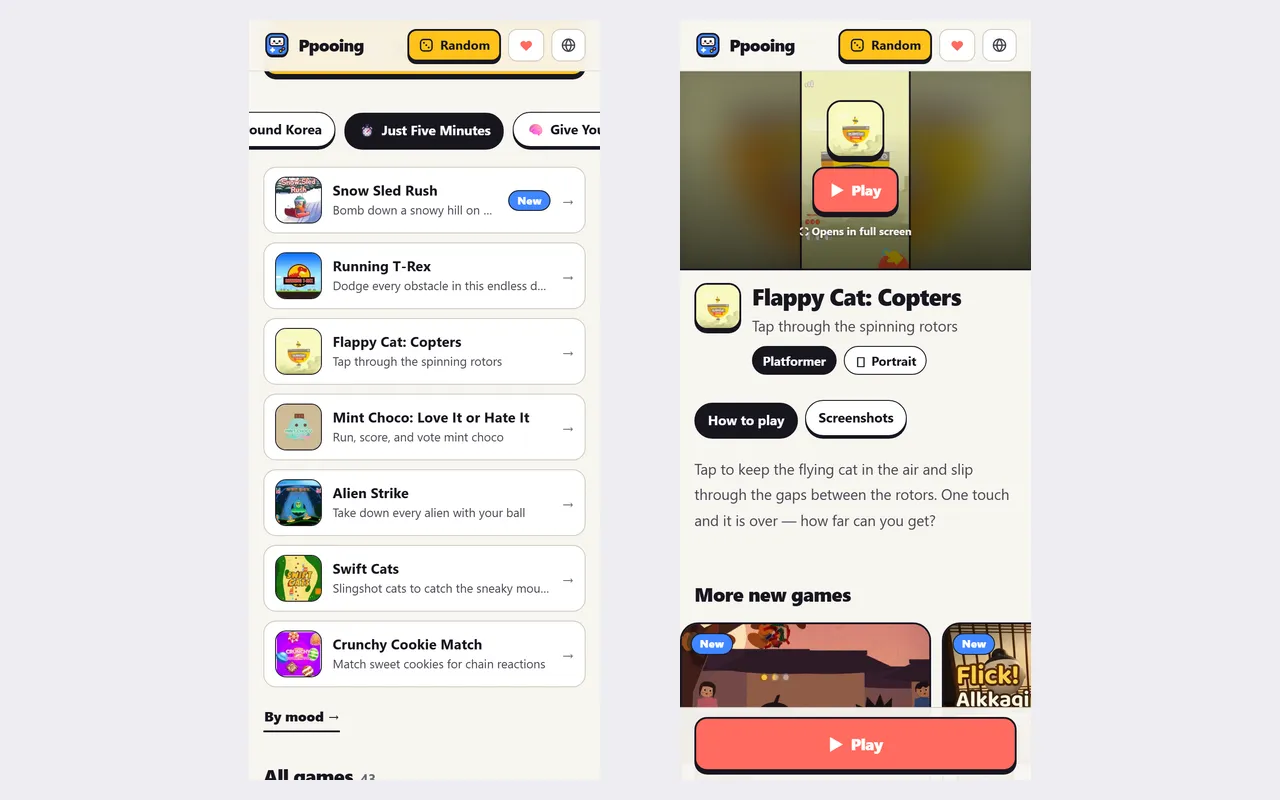
A five-minute break often happens on a phone, and a few details help there.
- On a phone, pressing "▶ Play" opens the game in full screen, as the line under the button says. A Play button also stays at the bottom of the screen while you read the page.
- Check the screen tag. Portrait games, such as Flappy Cat: Copters and Crunchy Cookie Match, fit a phone held upright. Landscape games, such as Snow Sled Rush and Running T-Rex, are easier with the phone turned sideways.
- The site's FAQ notes that some games are built around a keyboard or mouse and are awkward on a phone. A game page that lists Touch under its controls is a safer bet.
If you play often, the FAQ also says you can add Ppooing to your home screen from your browser menu, with "Add to Home Screen" or "Install".
5. Keep your quick games close
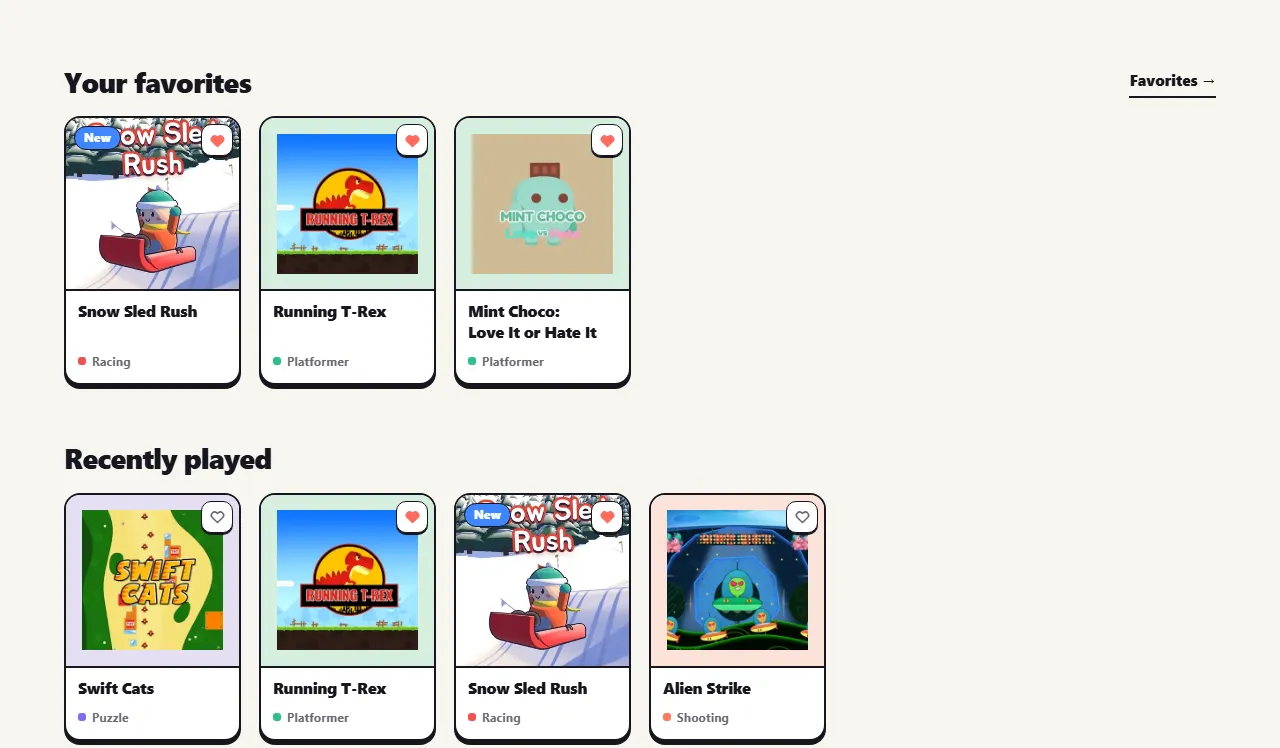
Once you find a few games that fit a short break, you do not have to look for them again.
- Favorites: press the heart on a game card, or the heart on the game page, to add the game to "Favorites" in the top menu. The front page then shows a "Your favorites" row.
- Recently played: the front page also lists the last six game pages you opened under "Recently played".
Both lists are stored only in the browser you are using. There is no account, so they do not appear on other devices or in other browsers.
Coming up
Next time: another way to put a spare few minutes to good use on the ZZXXCCVV sites.
Frequently asked questions
Where is the Just Five Minutes course on Ppooing?
Open "By mood" in the top menu. The page is headed "What should I play?" and Just Five Minutes is one of its courses. The same course is also one of the chips under "What should I play?" on the front page.
Is my score kept if I stop in the middle?
It depends on the game. When you press Exit, the site asks you to confirm and says your progress will not be saved. Some games keep records such as a best score in your browser, but they do not carry over to other devices.
Can I play these games on a phone?
Many of them, yes. On a phone, pressing Play opens the game in full screen. Each game page shows whether the game is played in Landscape or Portrait, and some pages also list the controls, such as Touch.
Will my favorites show up on another device?
No. Favorites and Recently played are stored only in the browser you are using.